Follow the complete workflow from signing in and connecting
your broker through building a trade, reviewing risk,
submitting an order, monitoring the position, and reviewing
performance.
BXK Trader Pro is a decision-support platform.
Always verify strikes, quantity, expiration,
order price, buying power, and maximum risk
before submitting a live order.
01
Chapter 1
Getting Started
Sign in to Trader Pro
Open
app.bxktraderpro.com
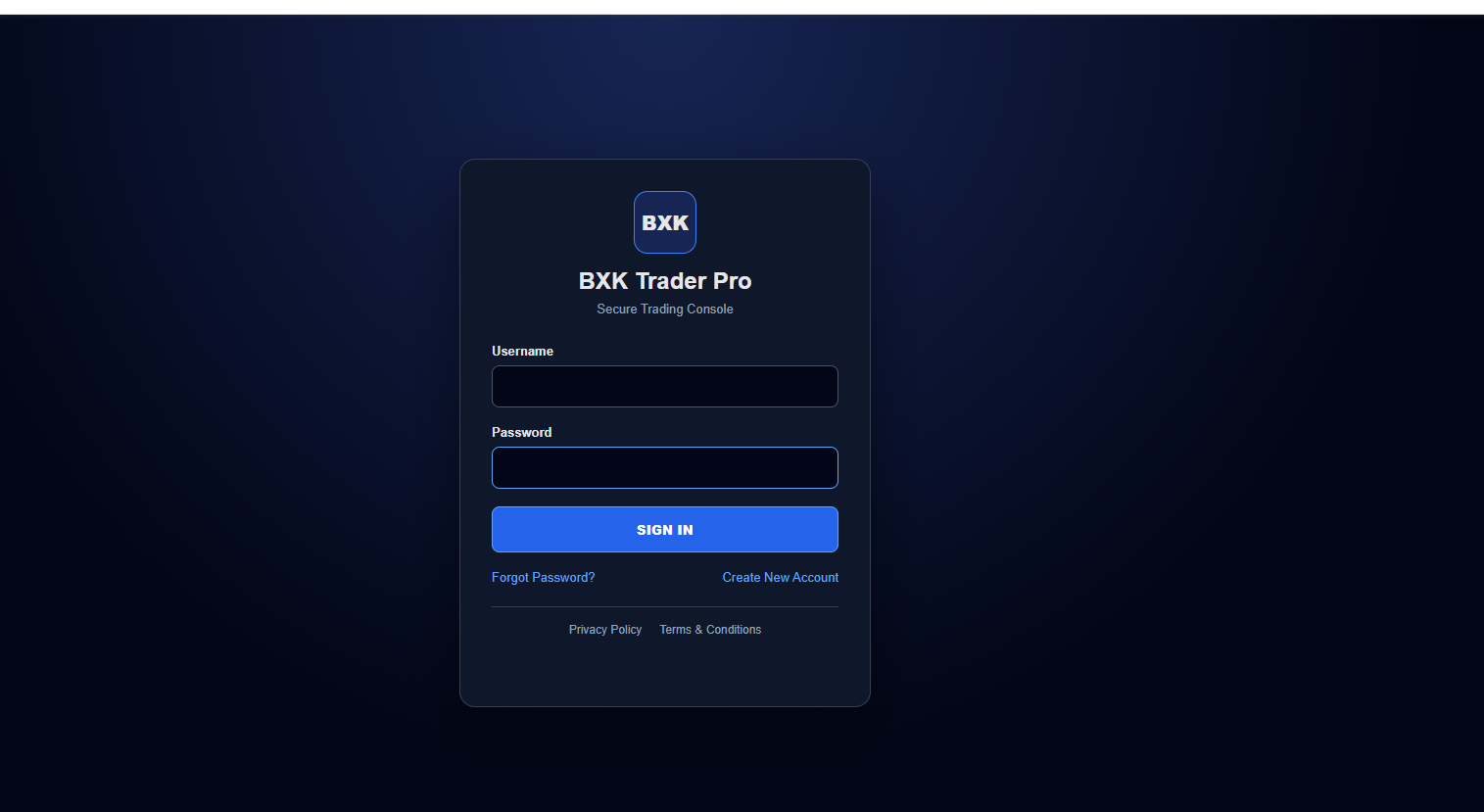
to reach the secure BXK Trader Pro login screen.
Enter your BXK username.
Enter your password.
Select
SIGN IN.
Complete a password change if the application
requires one.
Use Create New Account to request
access. Use Forgot Password?
if you cannot access your account.
Sign in with your BXK Trader Pro username and password.
New users can select Create New Account from this screen.
02
Chapter 2
Dashboard Tour
After signing in, Trader Pro opens to the
Trade Setup workspace.
Trade Setup
Build and evaluate new trade candidates.
Position Monitor
Track supported live broker positions.
Market Summary
Review current market conditions.
Strategies
View the BXK Strategy Playbook.
Performance
Review journal statistics and trade history.
System
Owner-only controls and administration.
The application status indicator shows whether
the BXK API is LIVE, STALE, or OFFLINE.
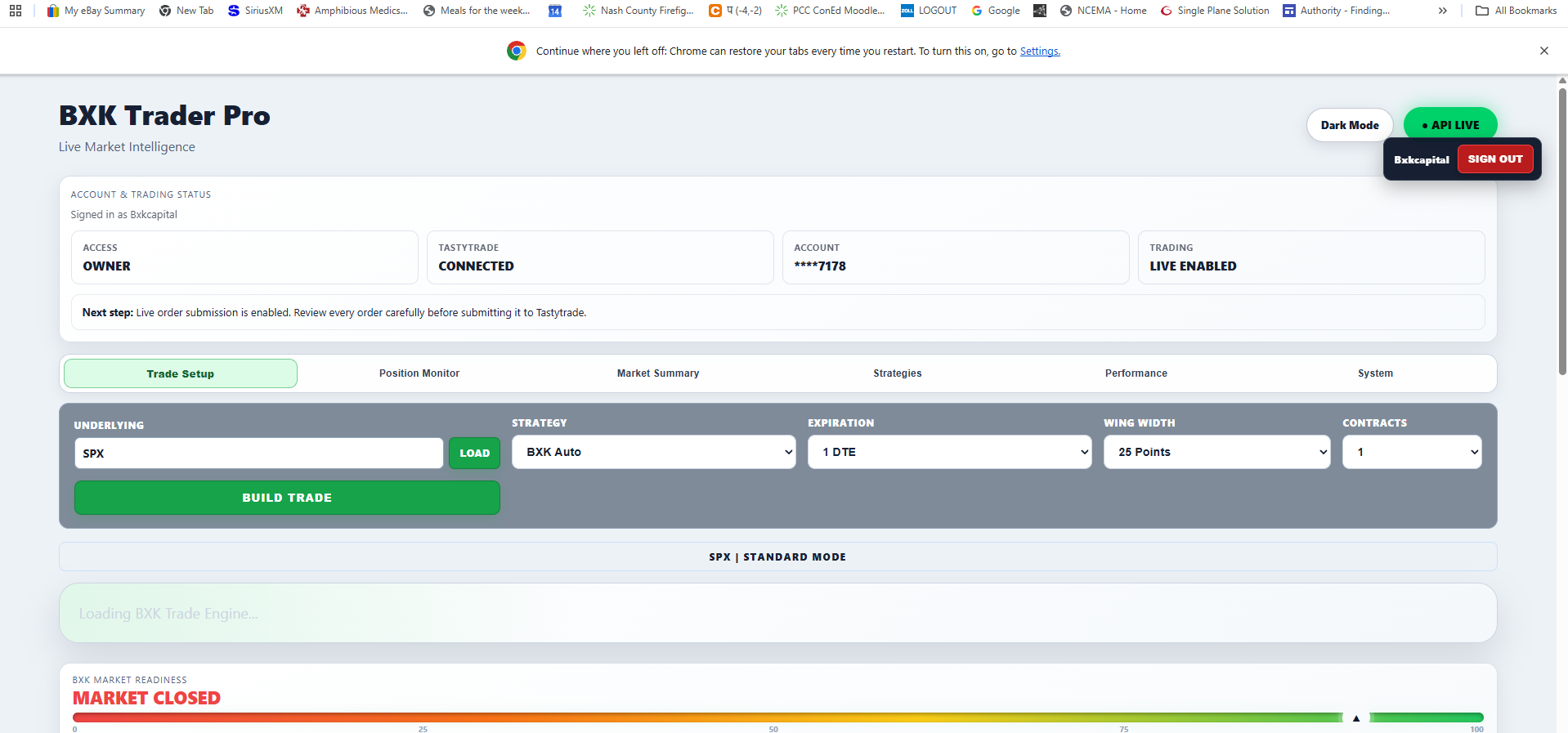
The main dashboard opens to Trade Setup and provides
navigation to Position Monitor, Market Summary,
Strategies, Performance, and System.
03
Chapter 3
Connect Your Broker
Broker connections allow BXK Trader Pro to retrieve
supported account and position information.
Tastytrade
Open the broker connection controls.
Select
Connect Tastytrade
when available.
Sign in directly at Tastytrade.
Authorize BXK Trader Pro.
Select the brokerage account BXK should use
if more than one account is returned.
Your Tastytrade password stays with Tastytrade.
BXK uses broker authorization rather than storing
the broker password.
Account Data Source vs. Execution Broker
BXK separates the broker used to read account data
from the broker permitted to submit orders.
The application displays these responsibilities
separately so the source of each action remains clear.
Tastytrade is the current execution path for supported
live orders. Schwab account-data connectivity will be
available when the applicable integration is enabled.
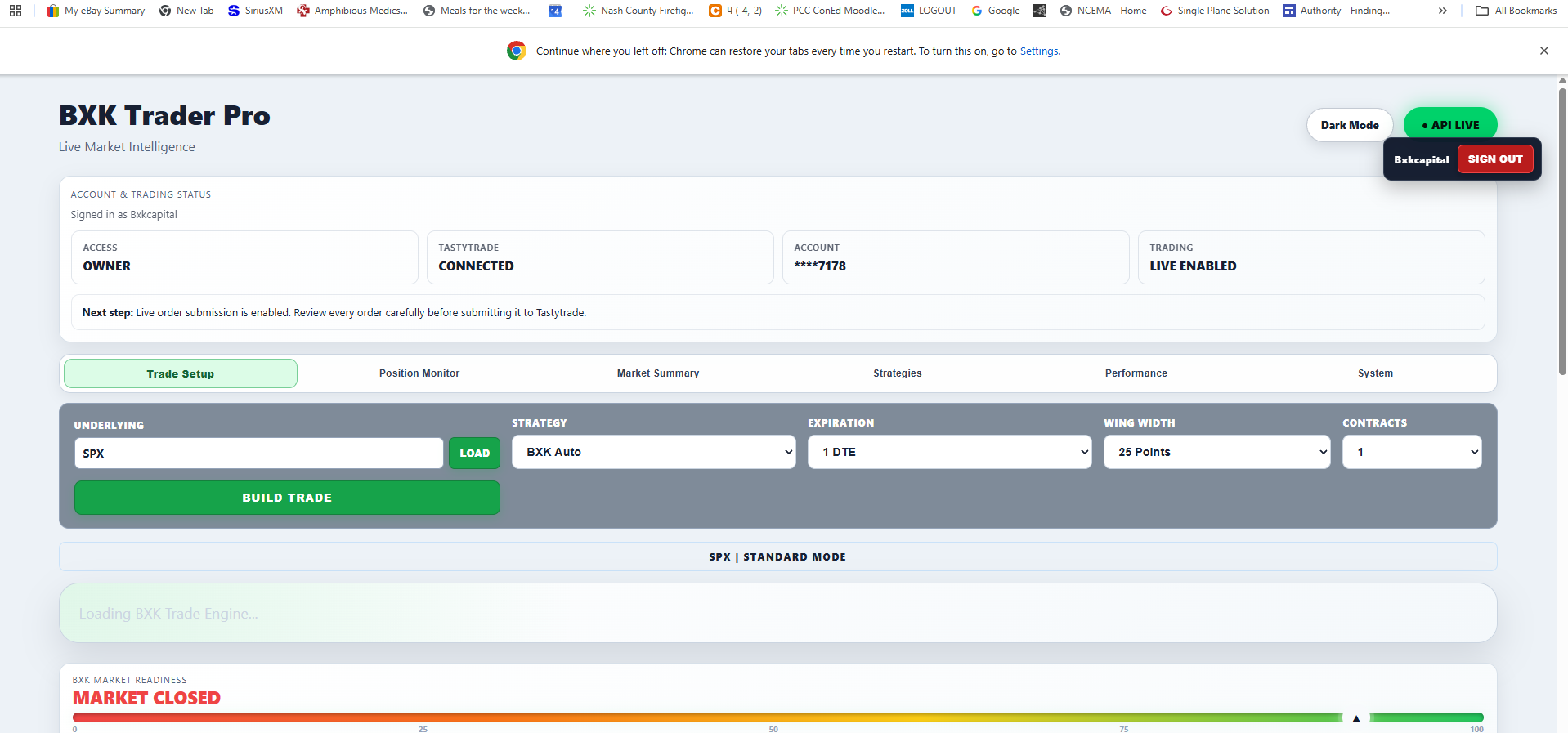
Account & Trading Status shows broker connectivity,
the selected account, access level, and whether live
trading is enabled.
04
Chapter 4
Build a Trade
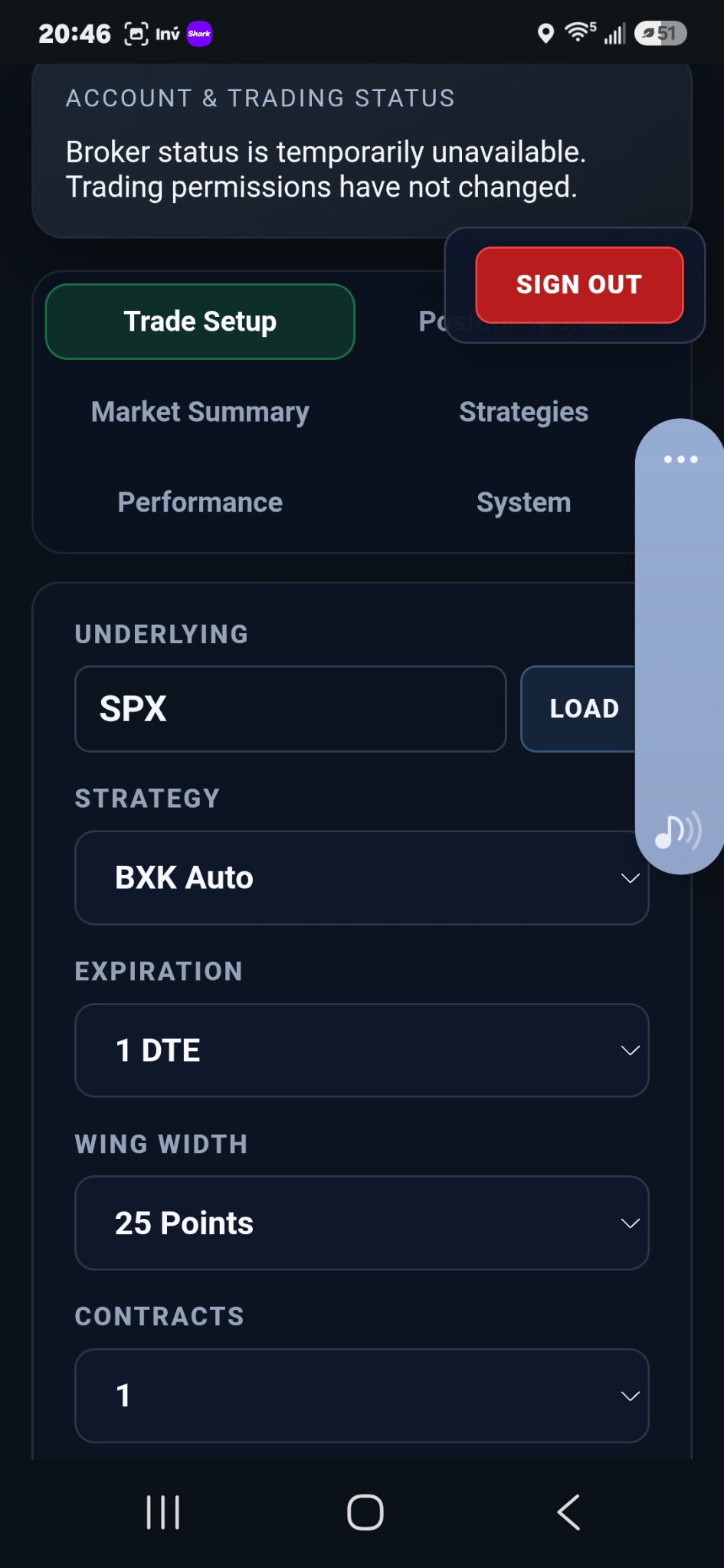
The Trade Parameters section controls the setup
BXK evaluates.
Control
Purpose
Underlying
Select SPX or another supported symbol.
LOAD
Loads option discovery data.
Strategy
BXK Auto or a supported strategy.
Expiration
Select the desired DTE.
Wing Width
Select spread width.
Contracts
Select requested position quantity.
Confirm the underlying.
Select the strategy.
Choose expiration and wing width.
Choose contract quantity.
Select
BUILD TRADE.
Some non-SPX underlyings may display
OBSERVATION ONLY.
BXK may analyze these setups while blocking execution.
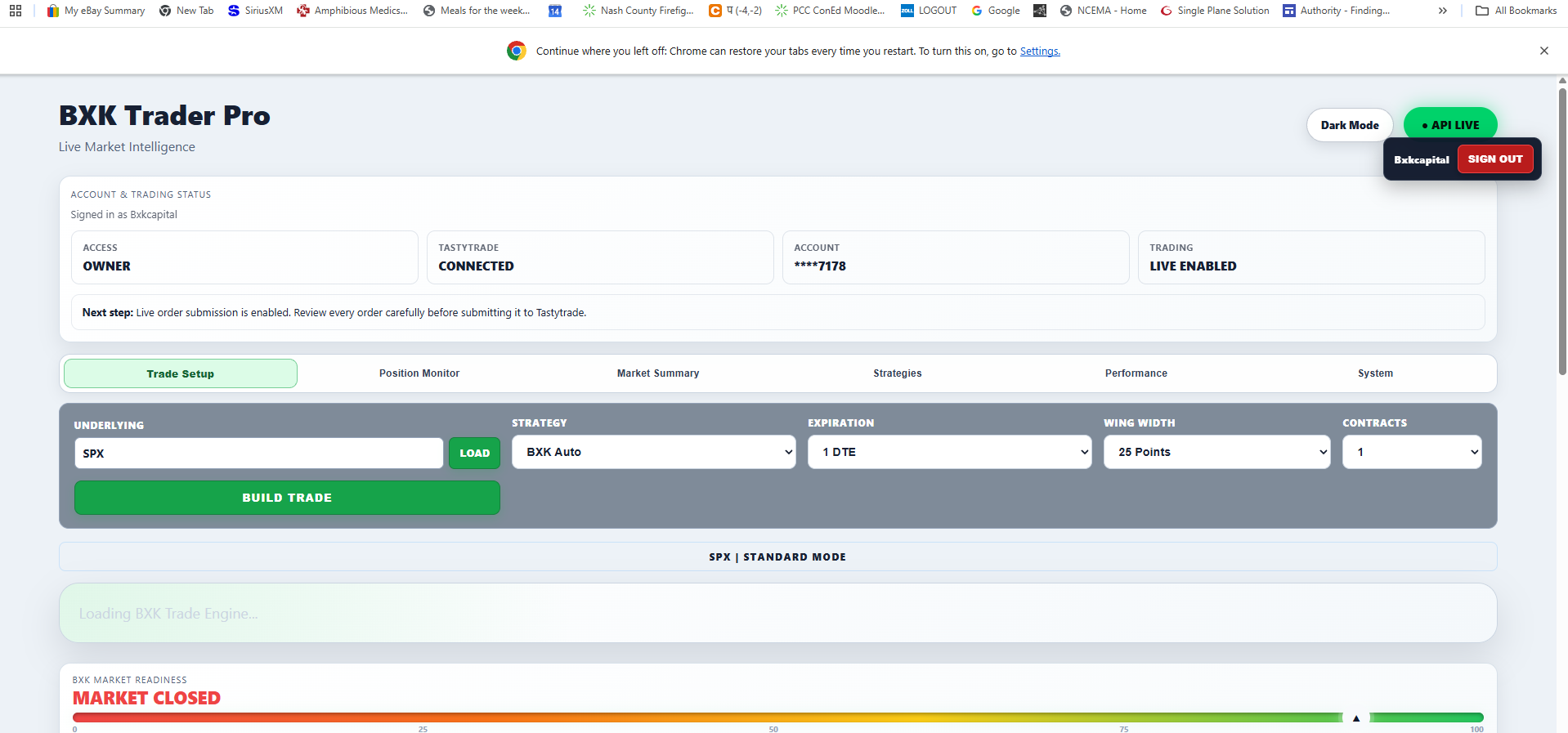
Select the underlying, strategy, expiration,
wing width, and contract quantity before choosing
Build Trade.
05
Chapter 5
Read the BXK Analysis
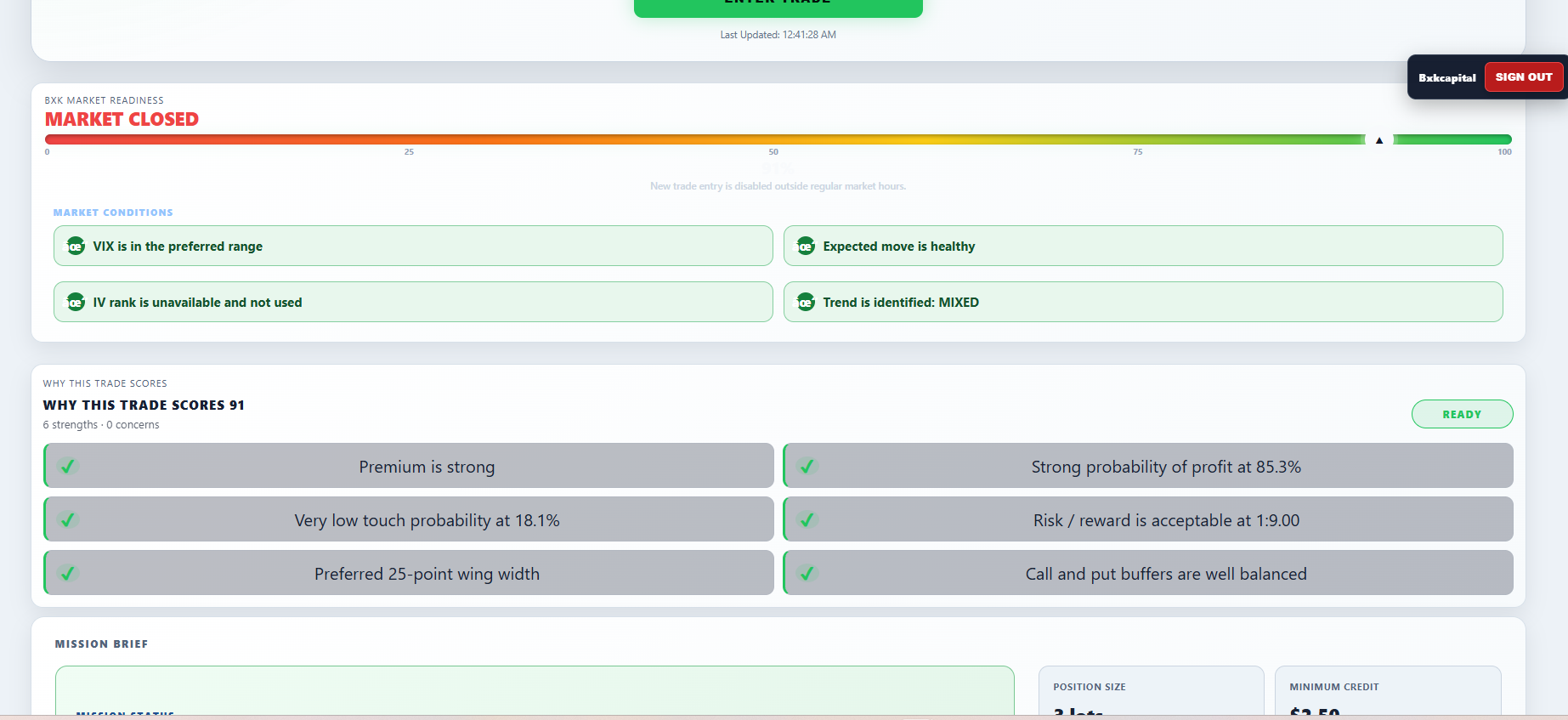
BXK Market Readiness
Market Readiness summarizes current trading conditions
and identifies factors supporting or blocking a setup.
Why This Trade Scores
The checklist explains the strengths and concerns
BXK identified for the trade candidate.
Mission Brief
Mission Brief summarizes position size, minimum credit,
take-profit guidance, stop logic, and the overall
recommended posture.
Decision
Overall BXK trade score.
Trend
Current directional state.
VIX State
Current volatility context.
Expected Move
Estimated expected market range.
Market Readiness and Why This Trade Scores explain
the market conditions and quality factors affecting
the BXK decision.
06
Chapter 6
Evaluate the Trade Candidate
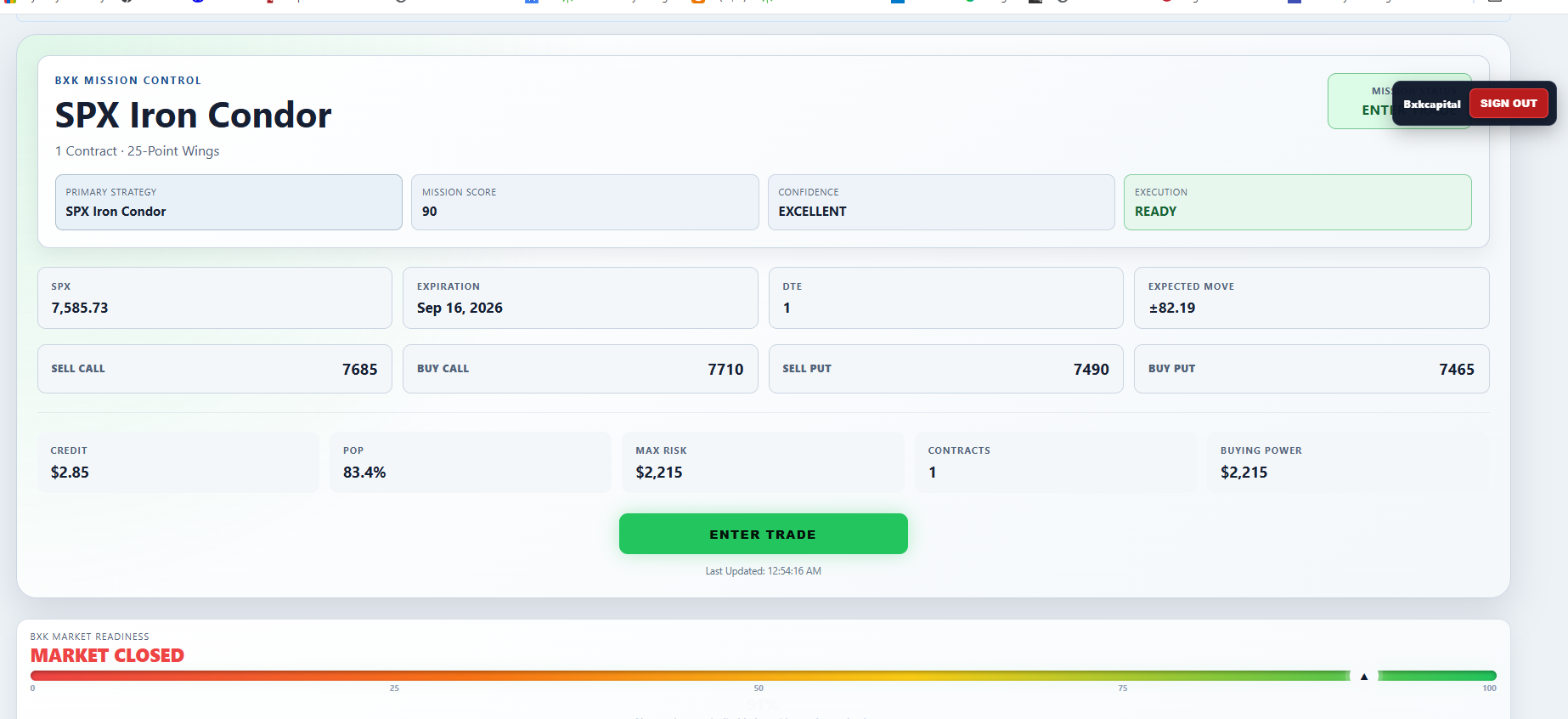
When BXK finds a qualifying candidate,
Mission Control displays the complete proposed trade.
Mission Status
ENTER TRADE or stand aside.
Mission Score
Trade-quality score.
Confidence
BXK confidence level.
Execution
READY or BLOCKED.
Credit
Proposed net credit.
POP
Probability of profit.
Max Risk
Maximum defined trade risk.
Buying Power
Estimated buying-power requirement.
If the setup is not approved, BXK displays
NO TRADE or
Stand Aside.
For an approved setup, select
ENTER TRADE
to open the order-review workflow.
Mission Control shows the proposed strategy, strikes,
credit, POP, maximum risk, buying power,
confidence, and execution status.
07
Chapter 7
Review the Order
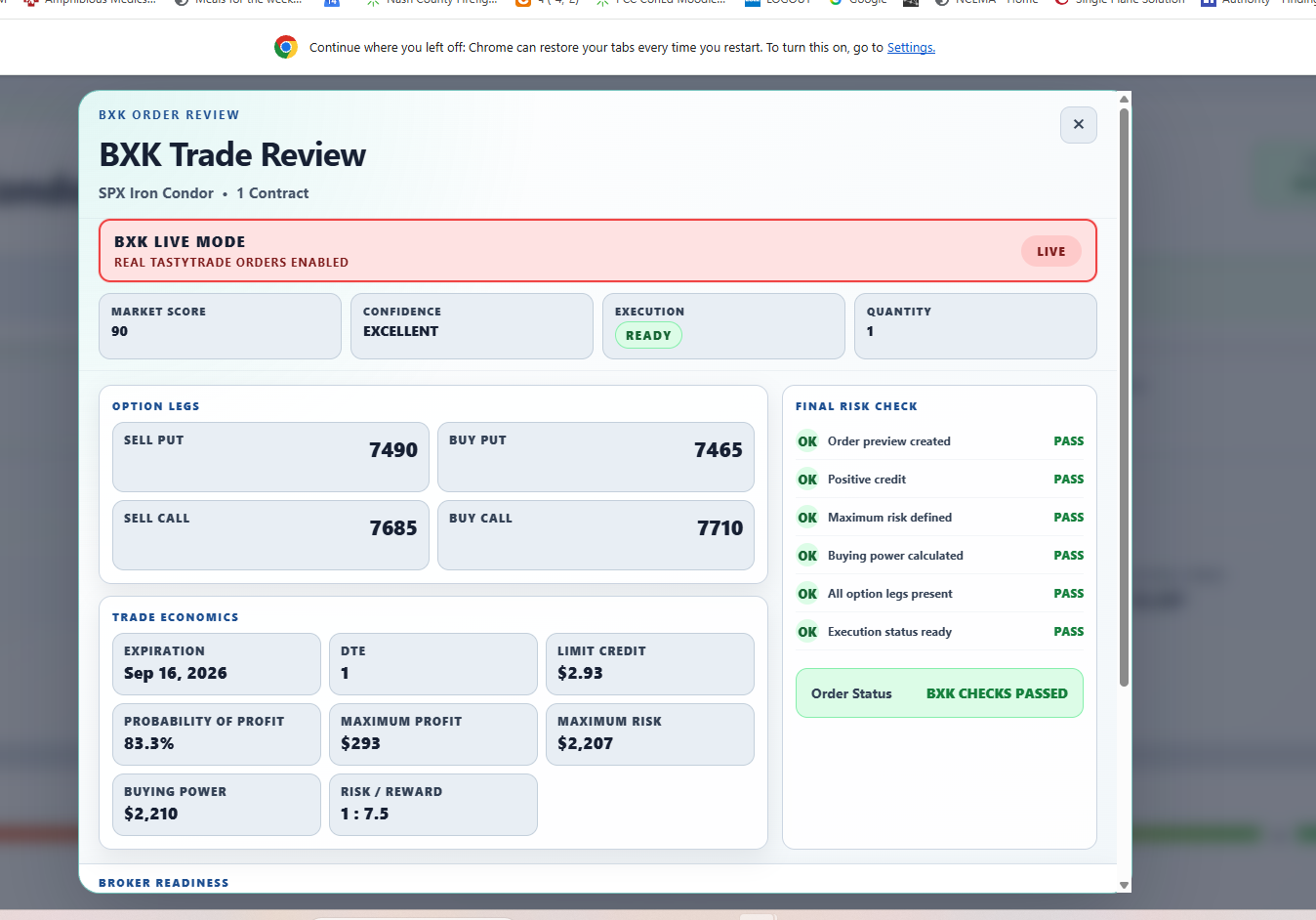
Selecting
ENTER TRADE
opens the BXK Trade Review window.
It does not immediately submit the order.
If the review banner says
BXK LIVE MODE,
successful submission can place a real broker order.
Final Risk Check
Order preview created.
Positive credit.
Maximum risk defined.
Buying power calculated.
All required option legs present.
Execution status ready.
Verify expiration, DTE, limit credit, probability of
profit, maximum profit, maximum risk, buying power,
quantity, and every option leg.
BXK checks passing does not replace your own order review.
Confirm that the order shown is exactly the order you
intend to place before submitting it.
BXK Trade Review displays the actual option legs,
trade economics, live or safe execution mode,
and final risk checks before submission.
08
Chapter 8
Monitor the Position
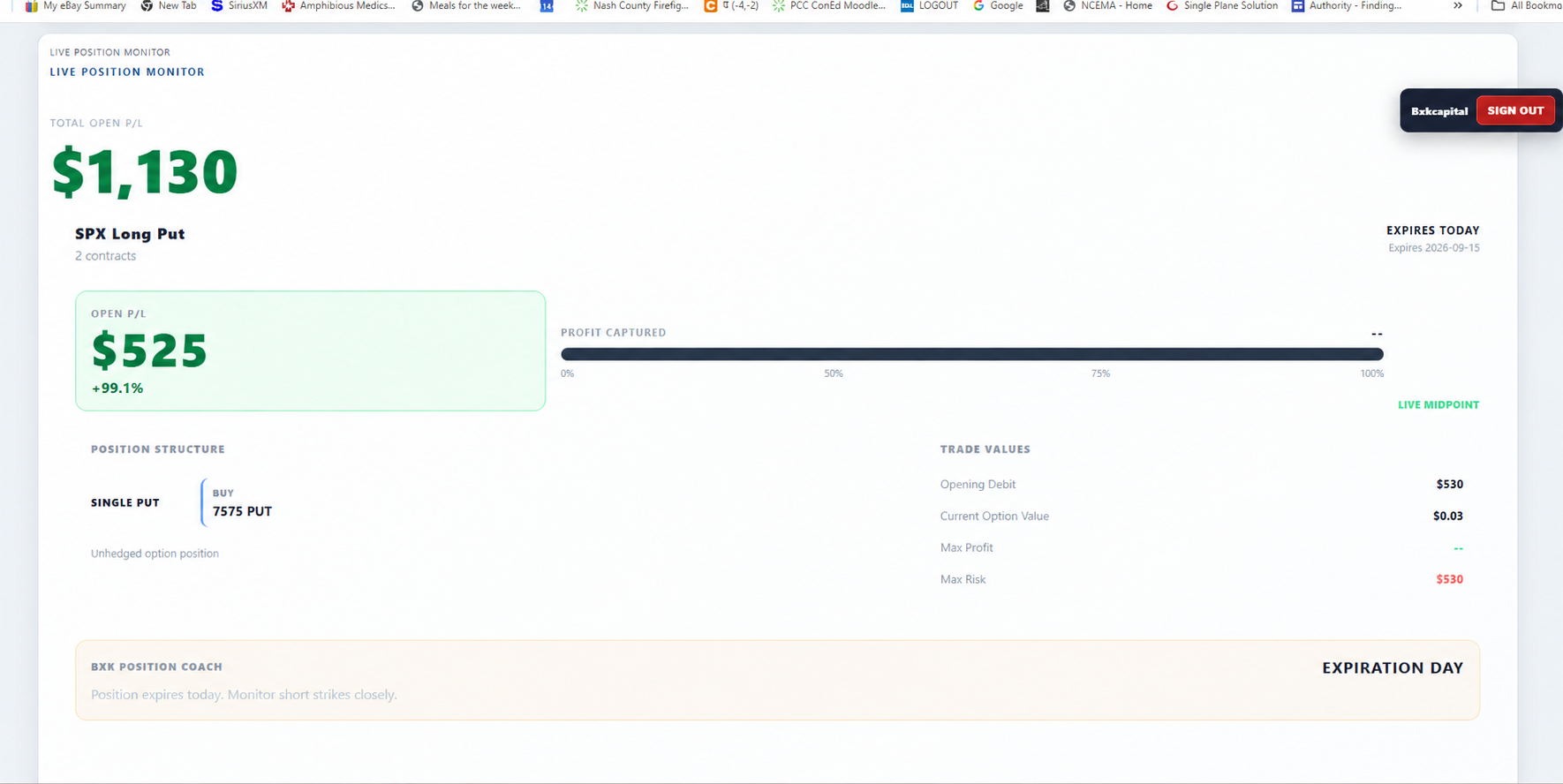
Open
Position Monitor
to review supported positions returned by your
selected brokerage account.
Open P/L
Current position profit or loss.
Profit Captured
Progress relative to maximum profit.
Position Structure
Option legs and position type.
Trade Values
Opening and current position values.
BXK Position Coach
Position Coach provides strategy-aware guidance such as
HOLD, CONSIDER EXIT, CLOSE POSITION, REVIEW NOW,
or EXPIRATION DAY.
SMS Risk Alerts
Trader Pro Pro can send optional text notifications
for supported position-risk events so you can receive
important warnings when you are away from the dashboard.
Daytime alerts can notify you when a supported
short strike becomes threatened.
Overnight Risk Guard can send an escalation alert
when supported risk moves from orange to red.
Alerts are associated with the signed-in user's
Trader Pro account and supported broker positions.
Pro feature:
SMS Risk Alerts require a paid Pro subscription
and separate SMS opt-in consent. Text alerts are
supplemental and do not replace monitoring your
brokerage account or open positions.
If BXK displays a quote-quality warning,
live valuation may be unreliable and automated
P/L guidance may be suspended.
Position Monitor displays open P/L, position
structure, live valuation, trade values,
and BXK Position Coach guidance.
09
Chapter 9
Market Summary & Strategies
Market Summary
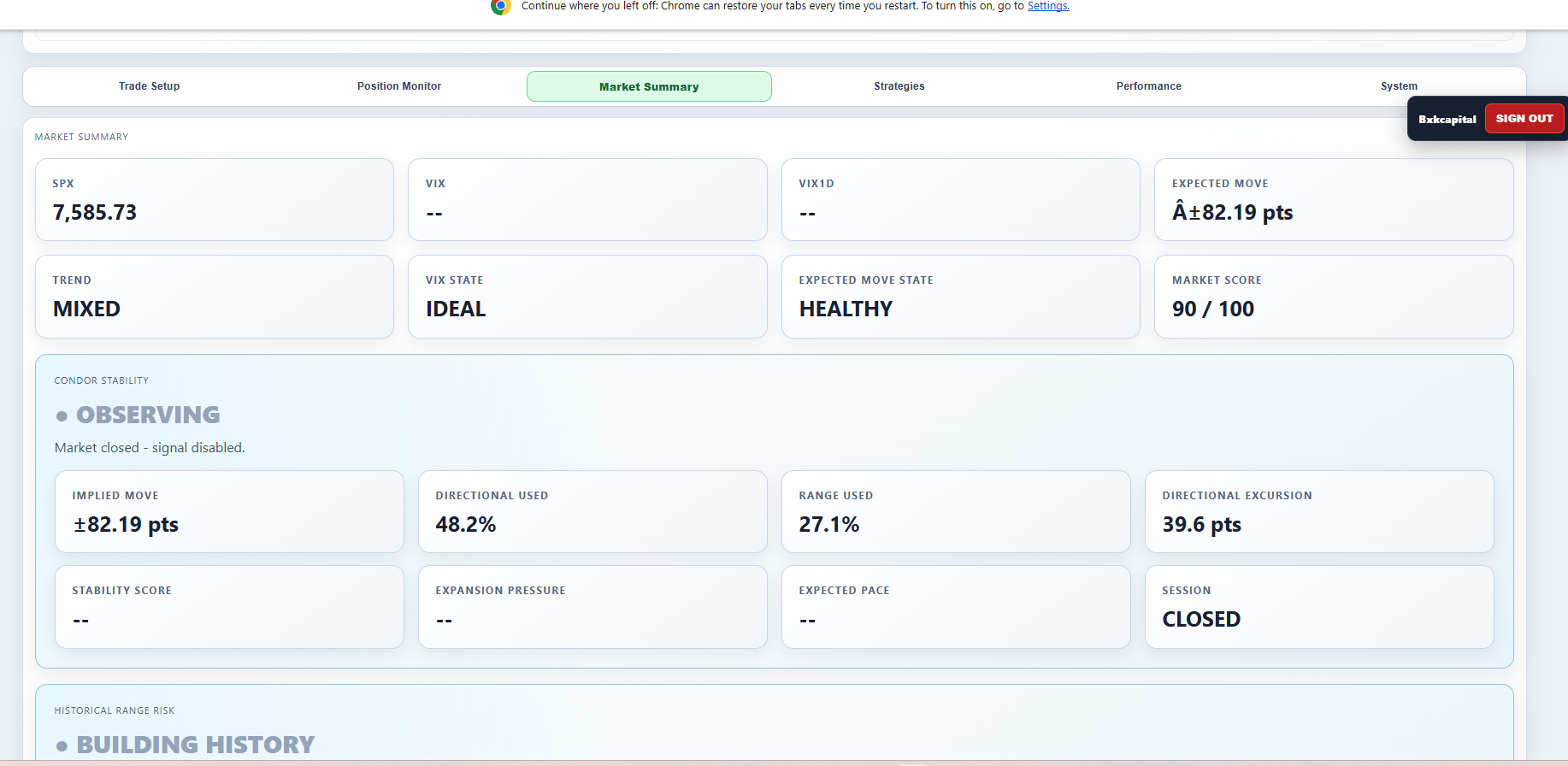
Market Summary displays the broader market context
feeding the BXK decision engine, including SPX,
volatility, expected move, market score,
stability information, and risk history.
Strategies
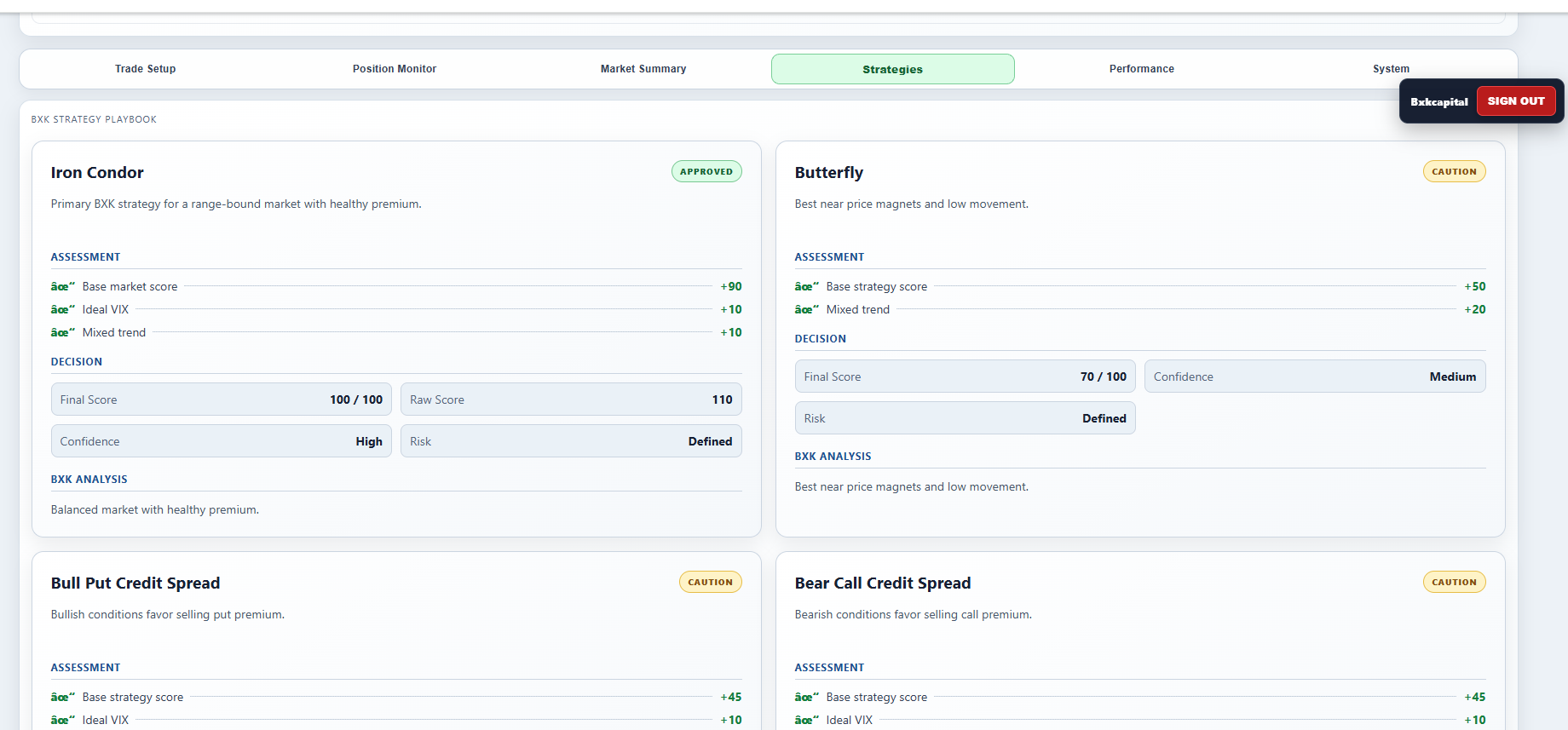
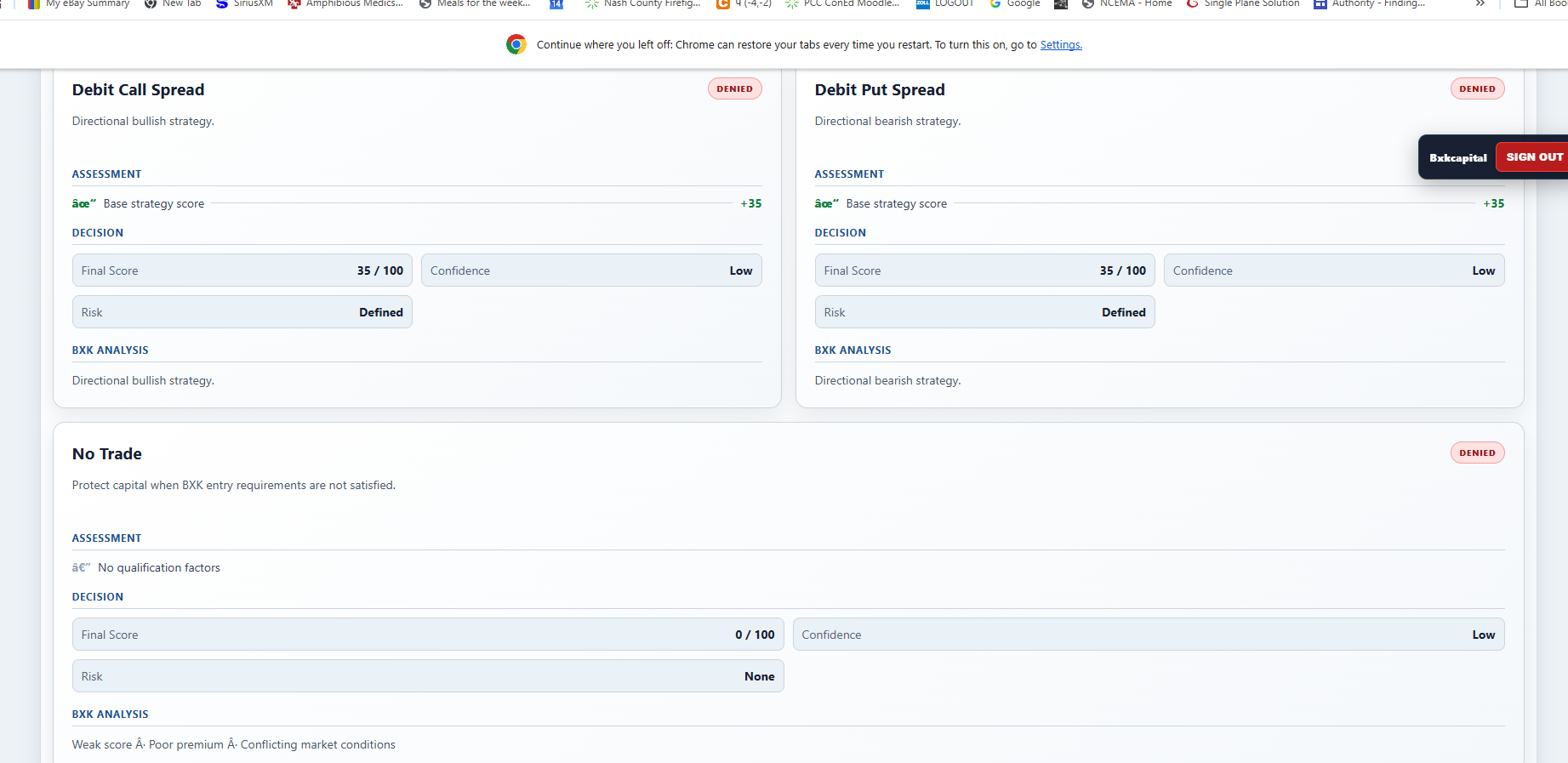
The BXK Strategy Playbook compares supported strategy
structures and displays the current assessment,
score, confidence, and risk profile for each.
Market Summary provides SPX, volatility,
expected-move, market-score, stability,
and historical risk context.
The Strategy Playbook compares supported strategies
using current market assessments, confidence,
score, and defined risk.
10
Chapter 10
Review Performance
Open the
Performance
tab to review trade-journal statistics and
recent completed trades.
The dashboard can display completed trade count,
win rate, realized P/L, average trade,
profit factor, average winner and loser,
risk escalations, and recent trade history.
Select
REFRESH
to reload the current journal statistics.
System features vary based on account access, connected
brokers, and enabled features. Owner-only administrative
controls may not appear for every user.
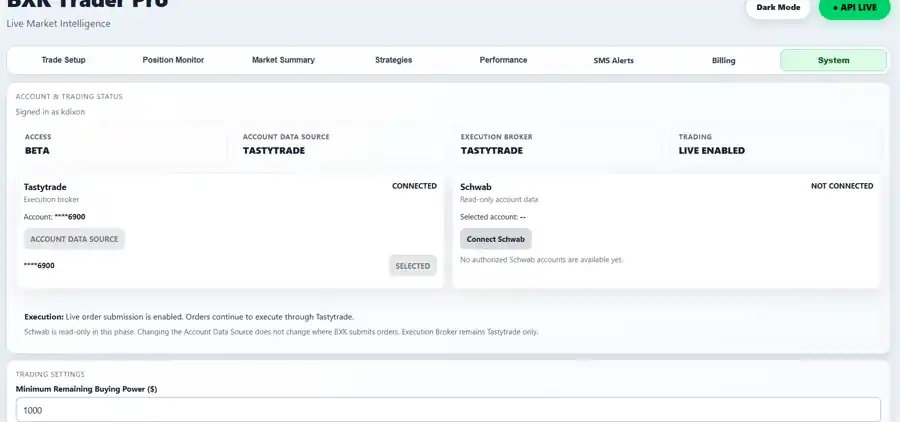
Account & Trading Status
Review your access level, account-data source,
execution broker, and current trading status.
Broker Connections
The System tab shows connected brokerage accounts,
selected account-data sources, and available broker
connection options. Execution remains separate from
read-only account-data connections where applicable.
Trading Settings
Review the trading controls available to your account,
including configured buying-power and execution settings.
The exact controls shown depend on your permissions.
The System tab shows account and trading status,
broker connectivity, account-data and execution roles,
and the trading settings available to the signed-in user.
12
Chapter 12
Use Trader Pro on Mobile
BXK Trader Pro uses the same responsive application
on desktop and mobile.
Open
app.bxktraderpro.com
in your mobile browser.
Sign in using your normal BXK account.
Navigate through Trade Setup, Position Monitor,
Market Summary, Strategies, and Performance.
Scroll through cards vertically as the desktop
layout adapts to the narrower screen.
The same Trader Pro workflow is available from a
mobile browser, with dashboard controls stacking
vertically for the narrower screen.
QR
Quick Reference
Common BXK Controls
Control
Purpose
LOAD
Load discovery data for an underlying.
BUILD TRADE
Request a trade candidate.
ENTER TRADE
Open the order-review workflow.
NO TRADE
The current setup is not approved.
READY
Required conditions are satisfied.
BLOCKED
One or more execution conditions failed.
LIVE
Live order submission may be enabled.
SAFE
Live order submission is disabled.
REFRESH
Reload current Performance information.
SIGN OUT
End the current BXK session.
Tutorial Complete
Put the workflow together
Verify your broker connection, build the trade,
review the BXK analysis, inspect the order,
and monitor the position after execution.